
Profile Info & Preferences
Click your avatar in the top right corner and open Profile info. Appearance, User level, Tabidoo Labs, and your paid applications are on the same page, below Profile info.
Profile info
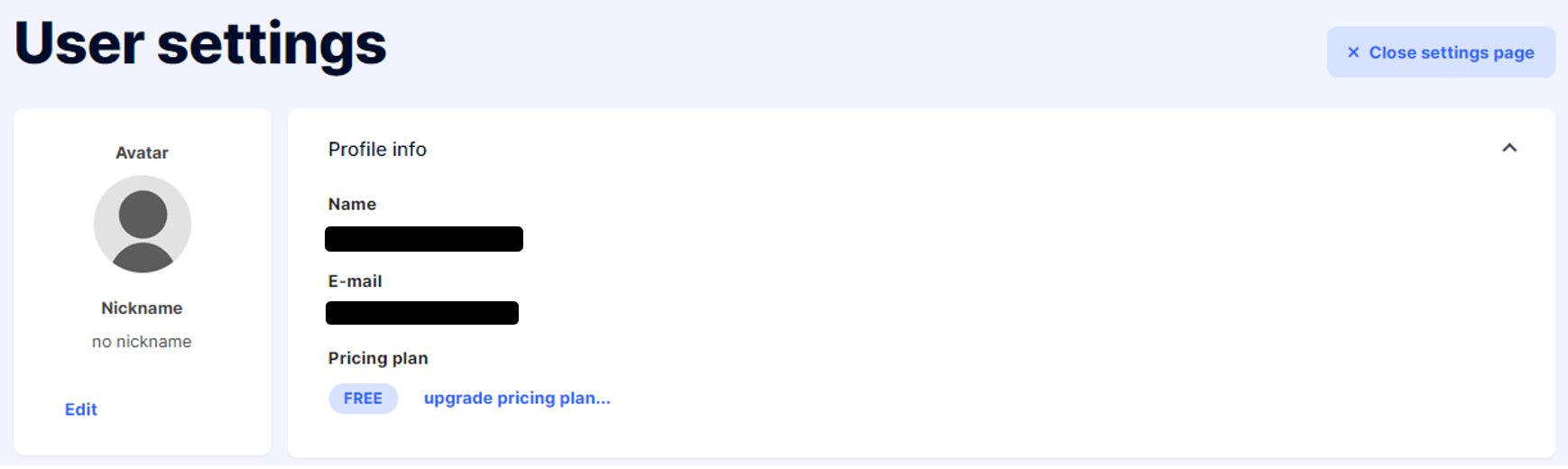
Here you can see your name, e-mail, and current pricing plan. To change your profile photo or nickname, click Edit under your avatar.
Profile info
To get a higher plan, click upgrade pricing plan next to your plan. See Subscription & Payments.
Appearance
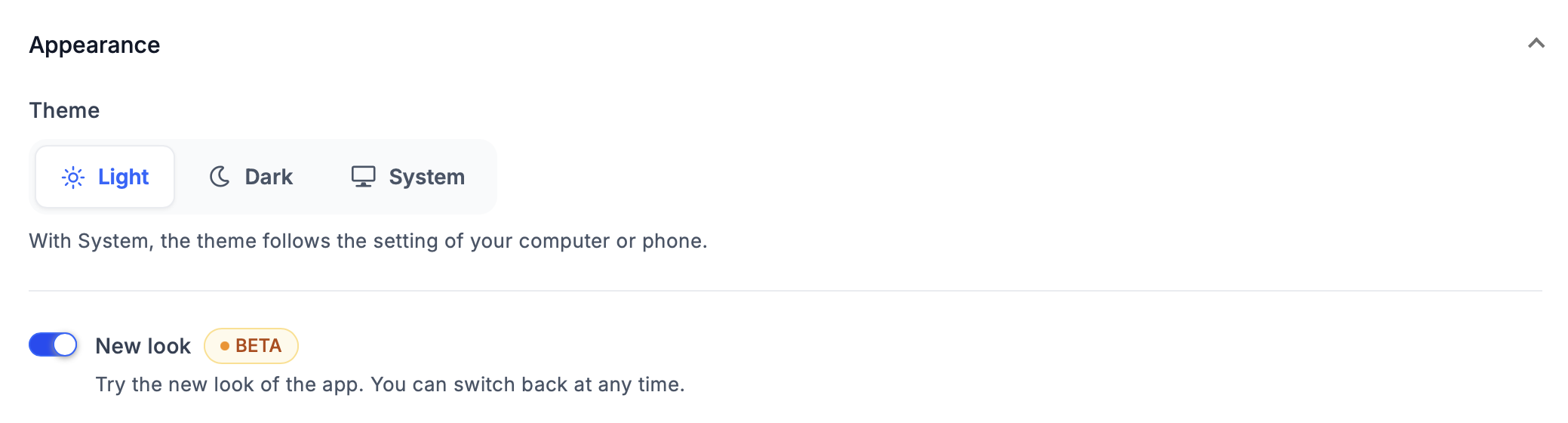
Theme – choose how Tabidoo looks:
- Light – the light color scheme.
- Dark – a darker color scheme, more comfortable in low light.
- System – the theme follows the setting of your computer or phone.
New look (BETA) – turn it on to try the redesigned Tabidoo. You can switch back at any time. You can also turn it on or off directly in the avatar menu. See New Look (BETA).
Appearance
User level
If you build applications, check I want to see the developer settings level. You then see advanced options in your applications, for example:
- the internal names of fields – see Internal Naming of Fields,
- the Developer tab in the advanced settings of an application – see Create Application – Advanced Settings.
The setting applies only to your user account.

User level
Tabidoo Labs
In Tabidoo Labs, you can try new features before they are officially released. Turn a feature on or off with its switch. Features in Labs may still change based on your feedback – click Give feedback to tell us what you think.
Some Labs features are turned on for one application instead – you find them on the Tabidoo Labs tab in the advanced settings of the application. See Create Application – Advanced Settings.
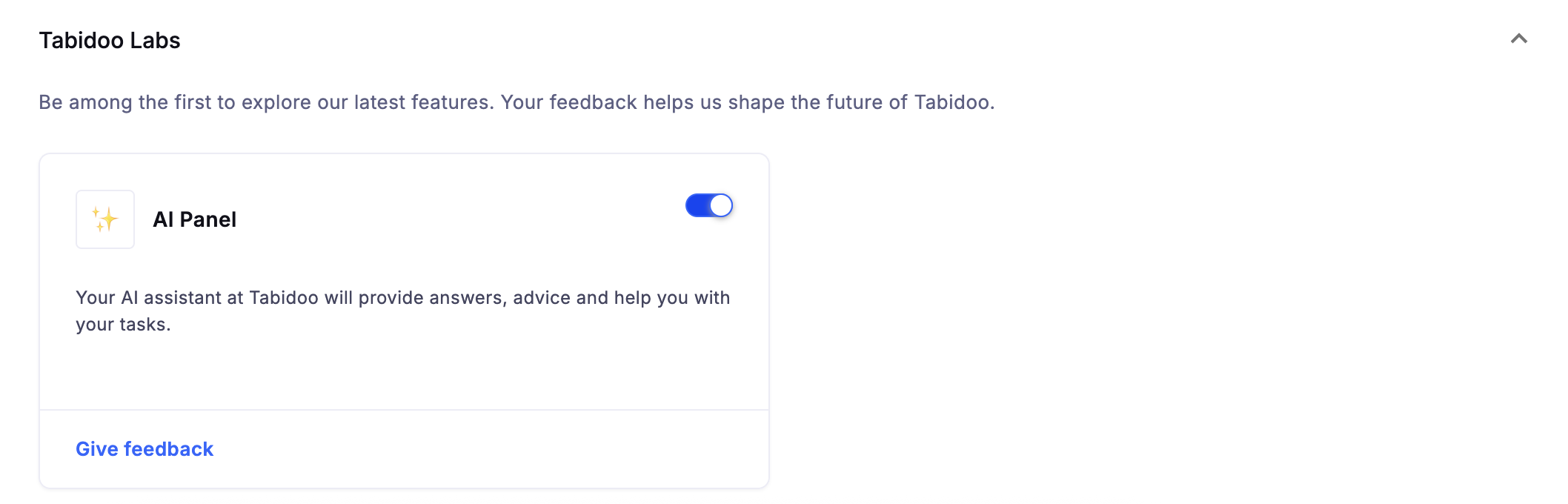
Tabidoo Labs in your account settings
Paid applications
If you use or publish paid applications, you find an overview of them on the same page. See Subscription & Payments – Paid applications.