
Connect Tabidoo to Claude using MCP
The following setup is intended for the Claude desktop application and uses mcp-remote to connect Claude to the Tabidoo MCP server.
Before you start
You need:
- the Claude desktop application,
- Node.js,
- a Tabidoo API token.
We recommend using a Shared API Token with only the application roles that Claude actually needs.
Step 1 – Install Node.js
The Claude configuration uses the npx command and therefore requires Node.js.
If Node.js is not installed, install an LTS version and restart your computer.
To verify the installation, open Command Prompt on Windows or Terminal on macOS and run:
node --version
You should see the installed Node.js version.
Step 2 – Open the Claude configuration
In Claude, navigate to:
Settings → Developer → Edit Config
Claude opens the configuration file:
claude_desktop_config.json
The same file may already contain other Claude settings.
Do not remove existing settings.
Add mcpServers as a new top-level property alongside existing properties such as preferences or coworkUserFilesPath.
If the file does not exist
On a fresh Claude installation, claude_desktop_config.json may not exist yet.
Use:
Settings → Developer → Edit Config
Claude can create the file automatically. This is the recommended approach.
If you create the file manually, make sure:
- its name is exactly
claude_desktop_config.json, - it contains valid JSON,
- it uses UTF-8 encoding,
- the configuration is enclosed in
{ }.
Step 3 – Configure Claude on Windows
If the configuration file is empty, use:
{
  "mcpServers": {
    "tabidoo": {
      "command": "cmd",
      "args": [
        "/c",
        "npx",
        "-y",
        "mcp-remote",
        "https://app.tabidoo.cloud/mcp",
        "--header",
        "Authorization:Bearer YOUR_TABIDOO_API_TOKEN"
      ],
      "env": {
        "NODE_OPTIONS": "--use-system-ca"
      }
    }
  }
}
Replace:
YOUR_TABIDOO_API_TOKEN
with your actual Tabidoo API token.
If your config already contains settings
Do not replace the existing file.
Add mcpServers at the same level as the existing settings.
For example:
{
  "mcpServers": {
    "tabidoo": {
      "command": "cmd",
      "args": [
        "/c",
        "npx",
        "-y",
        "mcp-remote",
        "https://app.tabidoo.cloud/mcp",
        "--header",
        "Authorization:Bearer YOUR_TABIDOO_API_TOKEN"
      ],
      "env": {
        "NODE_OPTIONS": "--use-system-ca"
      }
    }
  },
  "preferences": {
  }
}
Do not put mcpServers inside preferences. It must remain a top-level property.
Step 4 – Configure Claude on macOS
On macOS, cmd and /c are not required.
Use:
{
  "mcpServers": {
    "tabidoo": {
      "command": "npx",
      "args": [
        "-y",
        "mcp-remote",
        "https://app.tabidoo.cloud/mcp",
        "--header",
        "Authorization:Bearer YOUR_TABIDOO_API_TOKEN"
      ],
      "env": {
        "NODE_OPTIONS": "--use-system-ca"
      }
    }
  }
}
If Claude cannot find npx
This can happen on macOS when Node.js was installed through Homebrew or nvm.
Run:
which npx
Then use the returned full path as the command value.
For example:
/opt/homebrew/bin/npx
or:
/usr/local/bin/npx
Understanding the configuration
cmd /c
On Windows, the configuration launches npx through:
cmd /c
This prevents situations where Claude cannot locate npx.
On macOS, cmd and /c are not used.
mcp-remote
mcp-remote acts as a local bridge between Claude and the Tabidoo MCP server.
The Tabidoo endpoint is:
https://app.tabidoo.cloud/mcp
Authorization
The Claude configuration uses:
Authorization:Bearer YOUR_TABIDOO_API_TOKEN
Important
There must be no space after
Authorization:.There must be a space between
Bearerand the API token.
Correct:
Authorization:Bearer abc123
Incorrect:
Authorization: Bearer abc123
NODE_OPTIONS
The configuration contains:
"NODE_OPTIONS": "--use-system-ca"
This tells Node.js to use certificates from the operating system's certificate store.
It can be useful when HTTPS traffic is affected by antivirus SSL scanning, a VPN, or a corporate proxy.
Step 5 – Restart Claude
Save the configuration and completely quit Claude.
Then start it again.
On macOS, quit Claude using:
⌘Q
rather than only closing the application window.
Step 6 – Test the connection
Open a new conversation and ask:
What tables do I have in Tabidoo?
Then try:
Show me the last 5 records from the Customers table.
To test write access:
Create a new record in the Customers table with ...
You can also check the connection under:
Settings → Developer
The tabidoo MCP server should appear as:
connected/running
Alternative connection method
Open connectors in Claude
In the Claude desktop app, go to:
Customize → Connectors
Then click Add and select the option to add a custom connector.
2. Enter the Tabidoo MCP server details
Fill in:
- Name:
Tabidoo MCP - URL:
https://app.tabidoo.cloud/mcp
Click Continue.
3. Configure authentication
For Authentication, select:
None
Tabidoo MCP uses an API token instead of an OAuth sign-in.
Under Request headers, add:
- Header:
Authorization - Value:
Bearer [Your API token]
For example:
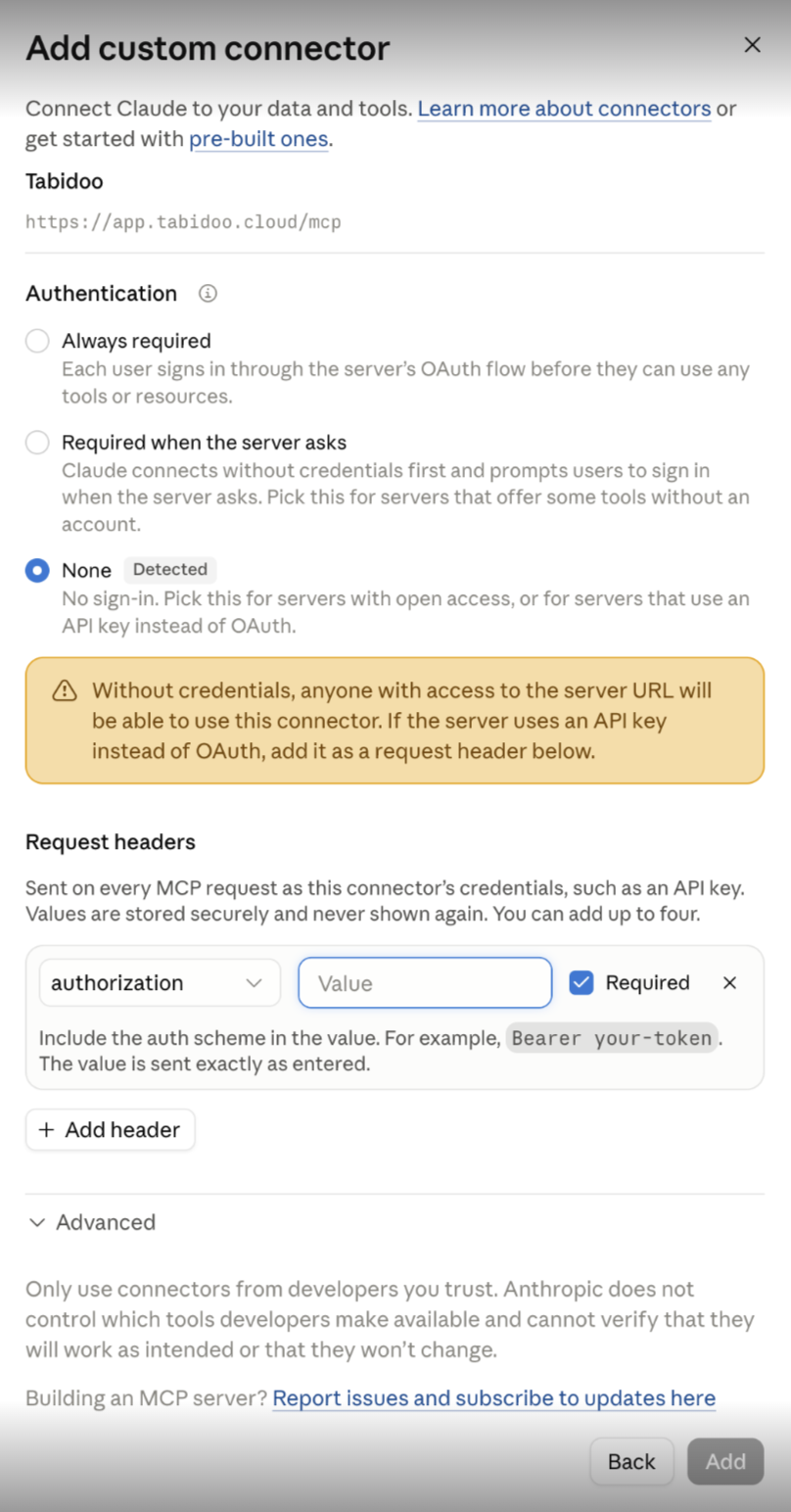
Authorization: Bearer eyJ...
Make sure there is a space between Bearer and your API token.
The token must be a valid Tabidoo API token. The Tabidoo MCP server expects authorization through the Authorization header using a Bearer token.
Troubleshooting
If Claude displays:
MCP tabidoo: Server disconnected
open:
Settings → Developer → tabidoo → View Logs
The log usually reveals the cause of the problem.
Node.js or npx cannot be found
Install the Node.js LTS version and restart the computer.
On macOS, run:
which npx
and use the returned full path in the configuration.
Certificate error
If the log contains:
UNABLE_TO_VERIFY_LEAF_SIGNATURE
or:
unable to verify the first certificate
an antivirus, VPN, proxy, or SSL inspection may be affecting the HTTPS connection.
The configuration uses:
"env": {
  "NODE_OPTIONS": "--use-system-ca"
}
to address this situation.
--use-system-ca is not recognized
Your Node.js version may be too old.
Update Node.js to a current LTS version.
Unauthorized access
Check that:
- the correct API token was inserted,
- the token has the required roles,
- the authorization header is formatted correctly.
Remember that there must be no space after Authorization: in the Claude mcp-remote configuration.
Invalid JSON
If the configuration cannot be loaded, check the commas and matching brackets in claude_desktop_config.json.
You can also copy the error or log into Claude. The guide notes that Claude can often identify the problem and suggest a solution.
The mcp-remote process runs locally on your computer.
Example – Create candidates from CVs
Suppose you have a Candidates table in Tabidoo.
Attach a CV to Claude and ask:
I am attaching a candidate's CV.

Read it and create a new record in the Candidates table in Tabidoo.

Fill in all information that can be extracted from the CV.
If some information is missing, leave the corresponding field empty.
Claude can read the CV, extract the information and create the Tabidoo record through MCP.
You can also attach several CVs and ask:
Create candidates from all attached CVs.
If you do not know the structure of the table, first ask:
What fields does the Candidates table contain?
Example – Find the best candidate
You can also ask Claude to compare candidates already stored in Tabidoo.
For example:
Go through all records in the Candidates table in Tabidoo
and find the most suitable candidate for the position:

Senior Python Backend Developer specializing in microservices.

Consider their experience, skills and previous positions.
Explain why you selected this candidate.
Claude can retrieve the records and compare them with your requirements.
You can then refine the result:
Which candidate has the most experience leading a team?
or:
Exclude candidates who do not speak English.
Tip
The quality of the result depends on the quality of the data stored in Tabidoo. More complete and consistent information about skills, experience, and previous positions allows Claude to make a more accurate comparison.