
Edit Multiple Records
The Multi Edit feature allows you to bulk update your selected or filtered data records directly in a table.
You can find this option above your data, in the top menu of the table.
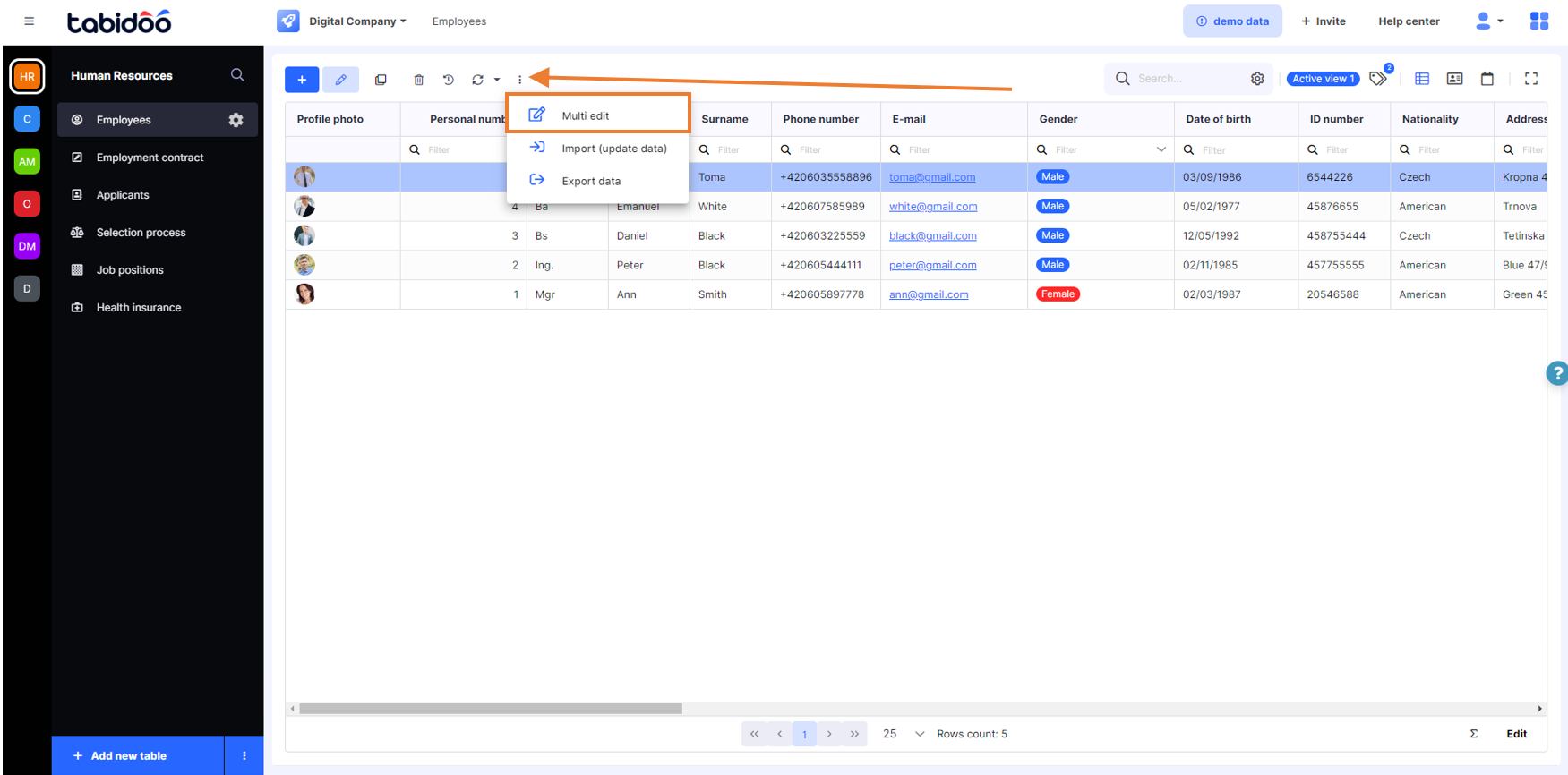
How to Use Multi Edit
Select the records to be updated
- You can:
- Manually select specific records by clicking their rows,
- Use Ctrl + A to select all records on the current page,
- Or, most efficiently, use filtering to target records based on defined conditions and apply changes to all filtered records at once.
Important: Ctrl + A selects only records on the currently displayed page. To work with more:
- Increase the pagination size (e.g., up to 1000 records per page),
- Or apply changes page by page if you need to update a larger dataset.
- For editing more than 1000 records efficiently, consider using a Bulk Edit script, which allows updates across all matching records regardless of pagination.
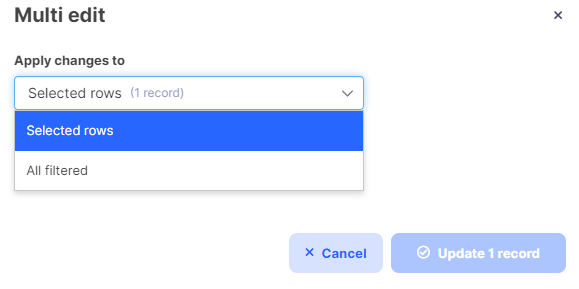
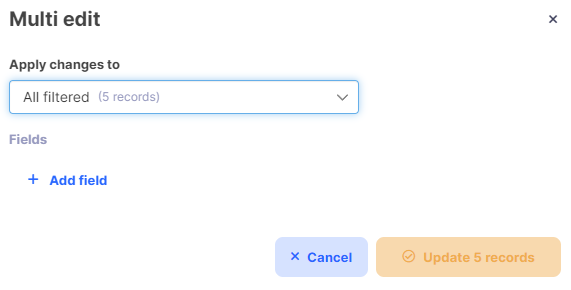
Choose fields and assign new values
- You can modify any field in the table - not just those visible on the screen.
Simply add any field you wish to change and assign it a new value that will be applied to all selected or filtered records.
Apply the changes
- Confirm the update to apply the new values immediately to the selected dataset
Tips and Limitations
- Multi Edit works great for quick updates to small or medium datasets.
- For large-scale updates, especially those involving thousands of records, we recommend using a script for more flexibility and efficiency.
- The feature respects:
- Your manual selection,
- Any active filters,
- And lets you freely add any fields from the table to include in the update.
Note: Multi Edit updates records directly without opening the record form. Therefore, form scripts and form behaviors are not executed during the update. This is intentional to keep bulk updates fast and efficient.