
Data Usage
Click your avatar in the top right corner and open Data usage. All values are summed over all applications you own.
Data usage has three tabs: Consumption, Applications, and Notifications.
Consumption
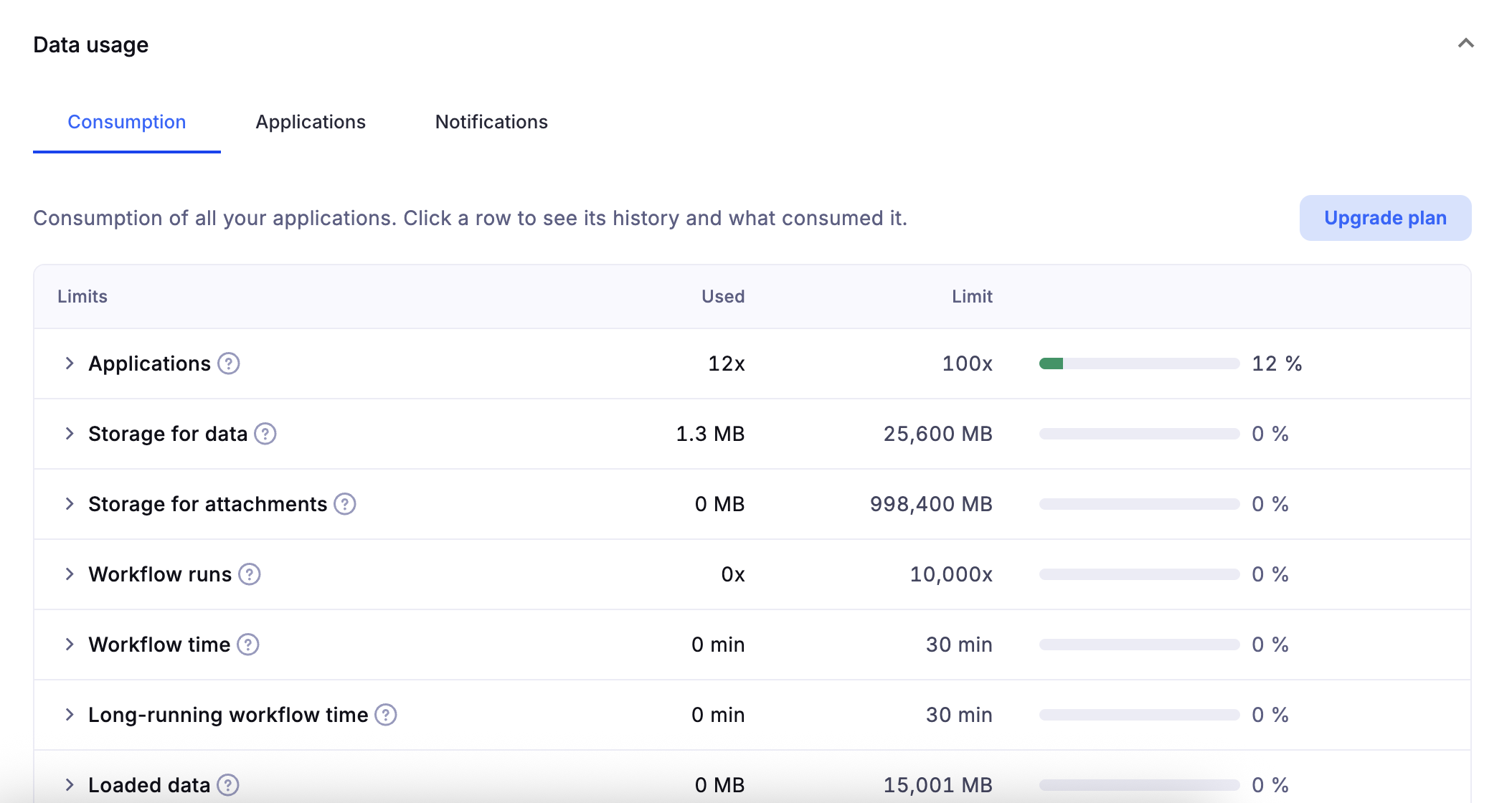
The Consumption tab compares the usage of all your applications with the limits of your plan. For each limit, you see:
- Used – how much you have used,
- Limit – the maximum allowed by your plan,
- a progress bar with the percentage used.
Depending on the limit, Used shows:
- the current total – Applications, Storage for data, Storage for attachments,
- today's usage – Workflow runs, Workflow time, Long-running workflow time, Loaded data, Loaded attachments. These limits reset every day at midnight UTC,
- this month's usage – Free AI credits, Purchased AI credits.
Hover over the ? icon next to a limit to see what it measures. If you need higher limits, click Upgrade plan.
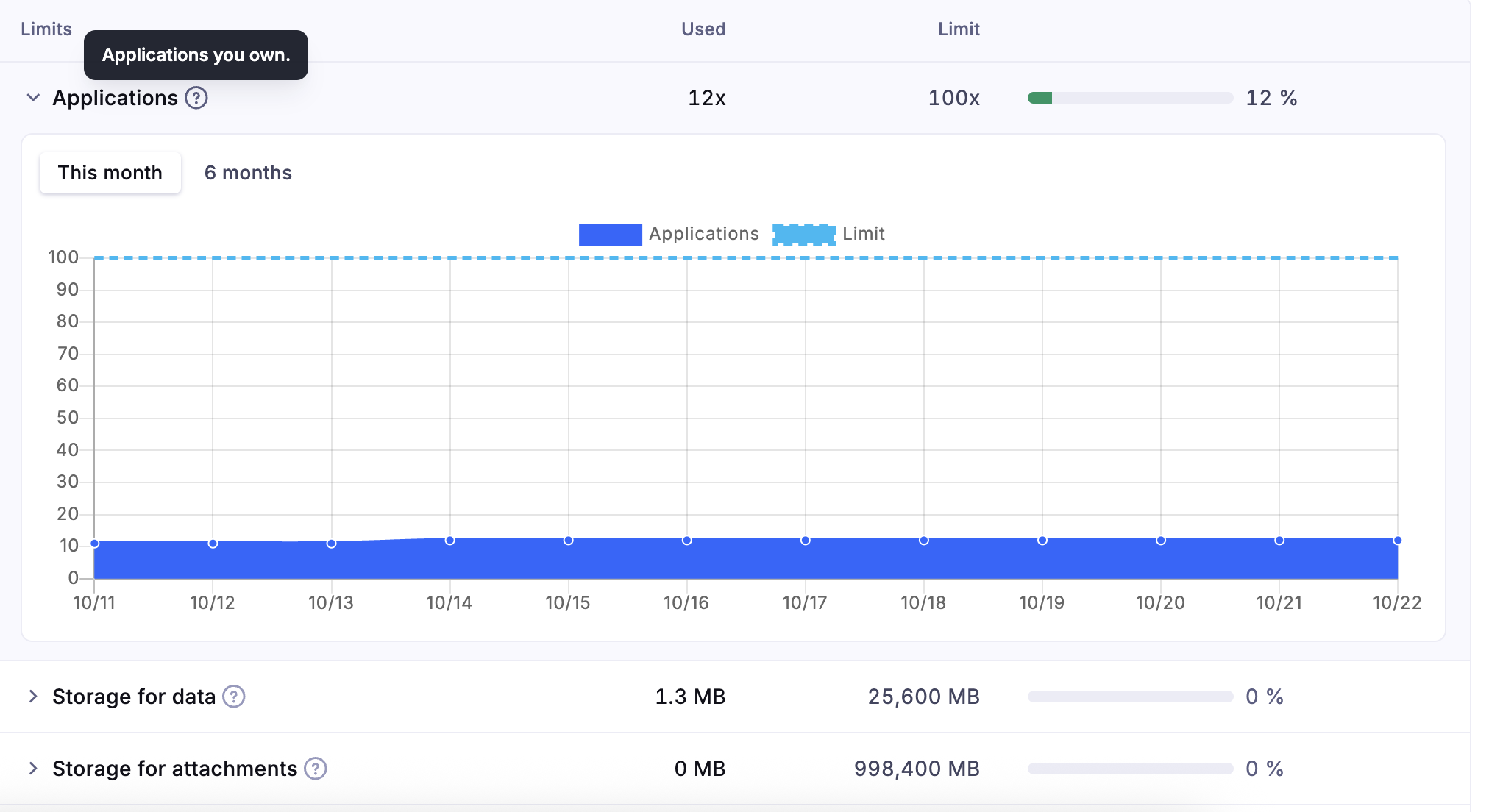
Consumption of all your applications compared to your plan limits
Statistics (no limit)
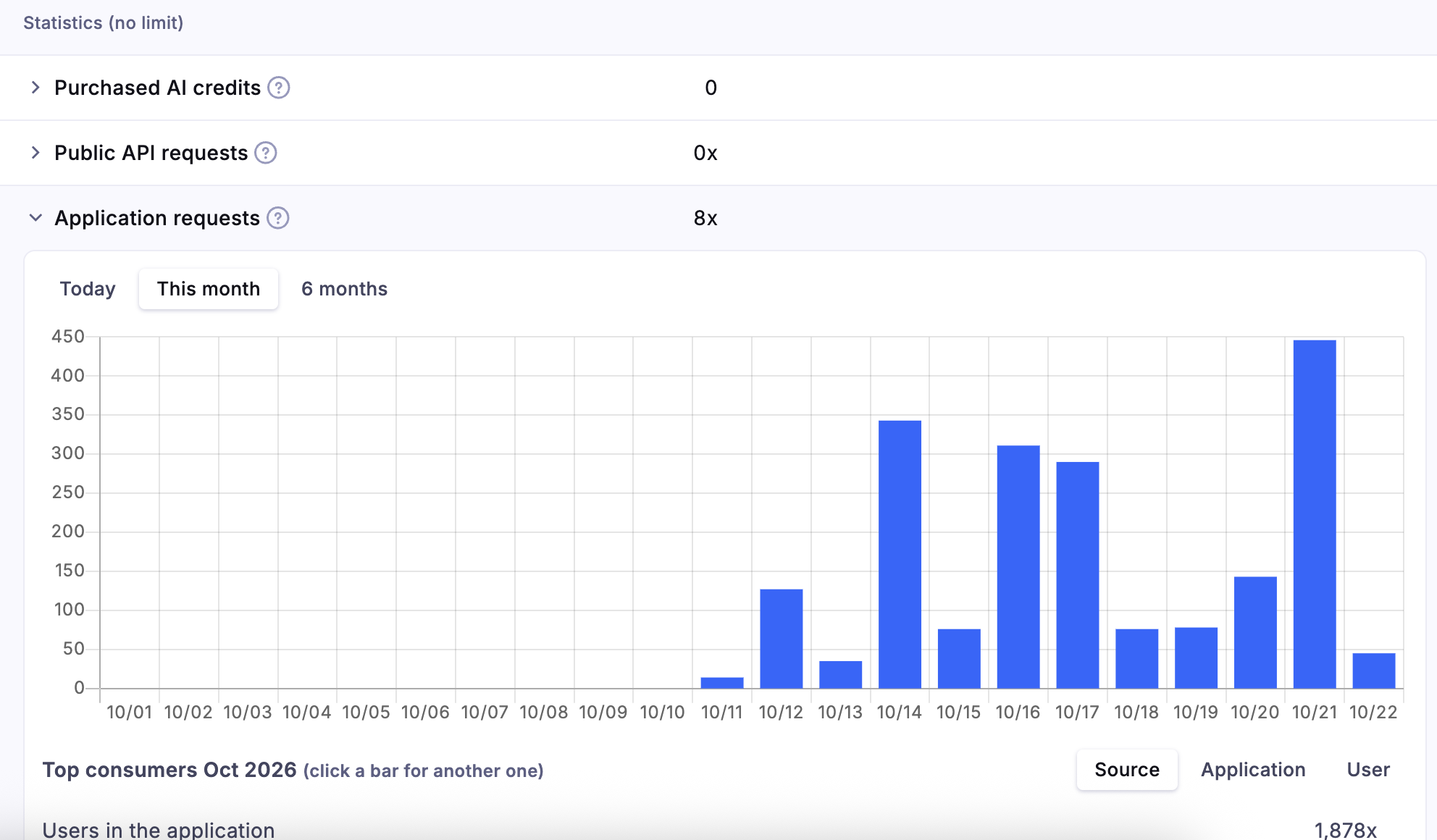
Below the limits, you find statistics that are not limited – for example Public API requests, Application requests, MCP calls, Rejected requests (429), E-mail recipients, Rows saved by the bulk API, Calculated field evaluations, or Data loading time. They help you understand where your usage comes from.
Note: "No limit" means there is no daily limit for these values. API requests are still subject to rate limits per minute and per hour. Requests rejected because of a rate limit are counted in Rejected requests (429).
History and top consumers
Click any row to see its history. Switch between Today, This month, and 6 months. Under the chart, Top consumers show what used the most – by Source, Application, or User. Click a bar in the chart to see the top consumers for that day.

Applications
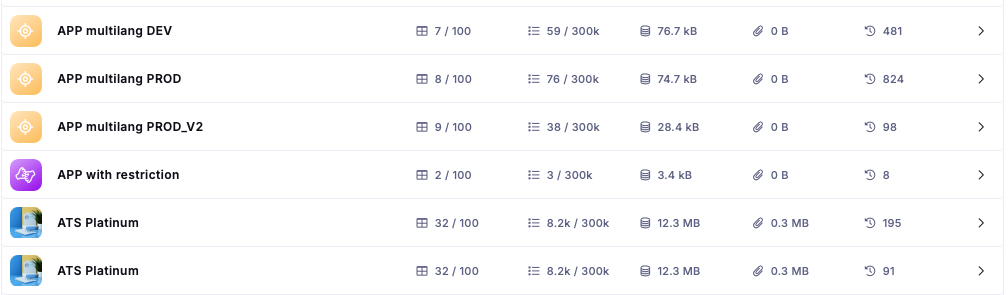
The Applications tab shows the usage of each application separately:
- the number of tables and records,
- data storage and attachment storage,
- the number of changes recorded in the audit log.
It helps you find the applications that use the most resources.
Notifications
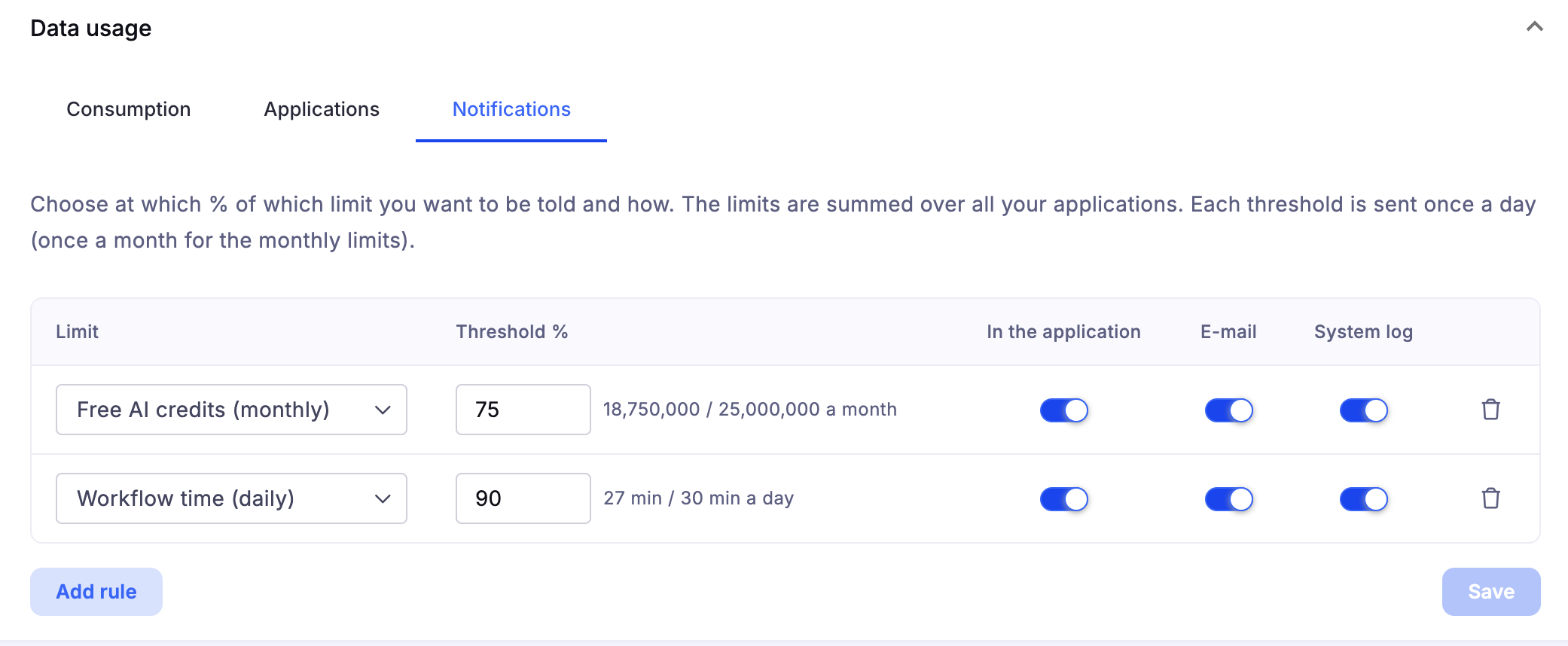
On the Notifications tab, you choose when and how you want to be notified that you are approaching a limit.
- Click Add rule.
- Select the Limit, for example Workflow runs (daily).
- Enter the Threshold %. The value in absolute numbers is shown next to it, for example 60% = 6,000x / 10,000x a day.
- Choose how you want to be notified: In the application, E-mail, or System log.
- Click Save.
To delete a rule, click the trash icon.
Each threshold is sent once a day, or once a month for monthly limits.
For developers
You can read your current consumption in a script with doo.environment.getCurrentUserTechnicalLimits(). See doo.environment.