
AI Chat (Ask Mode)
AI Chat allows you to interact with Tabidoo using natural language.
You can ask questions, request help, or generate solutions directly inside your application.
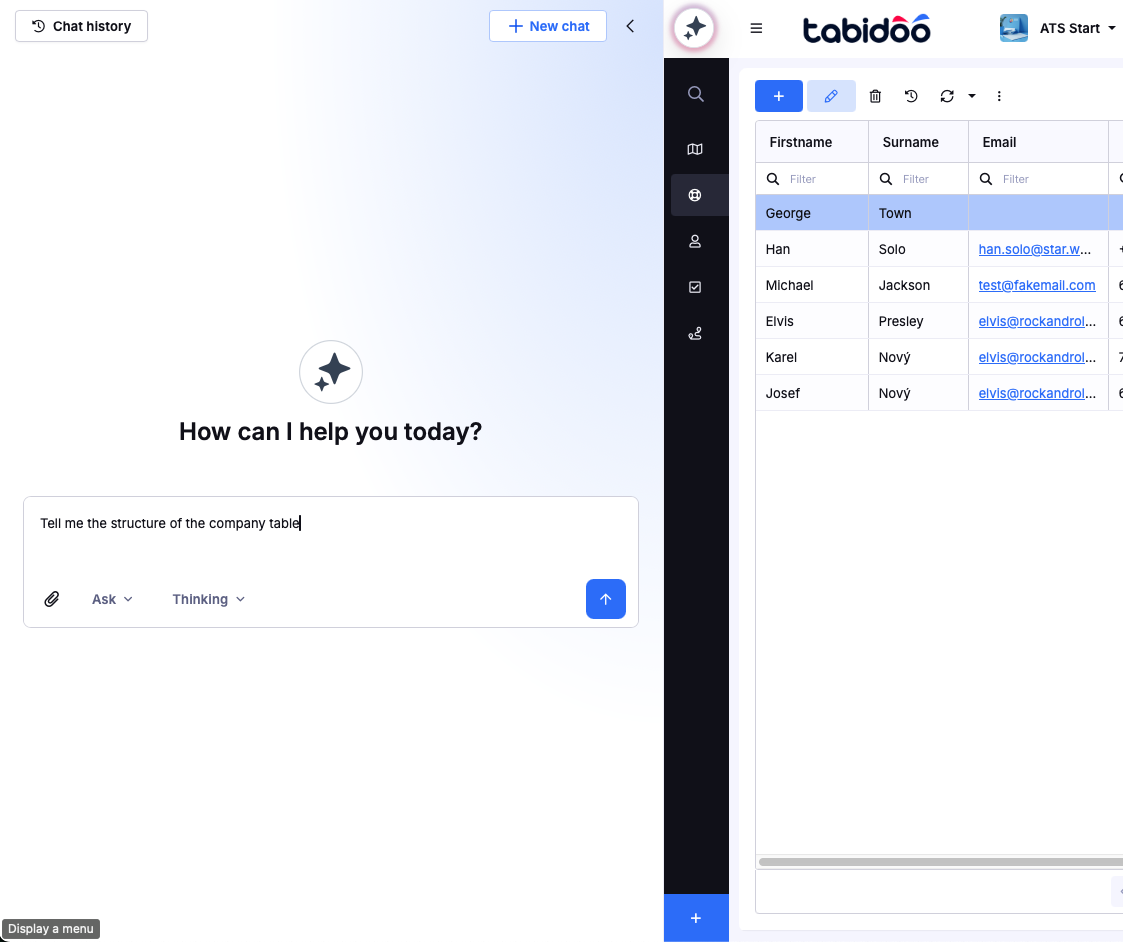
How to open AI Chat
- Click the AI icon (top-left corner) in the interface
- The chat window will open
- Start typing your request
How to use AI Chat
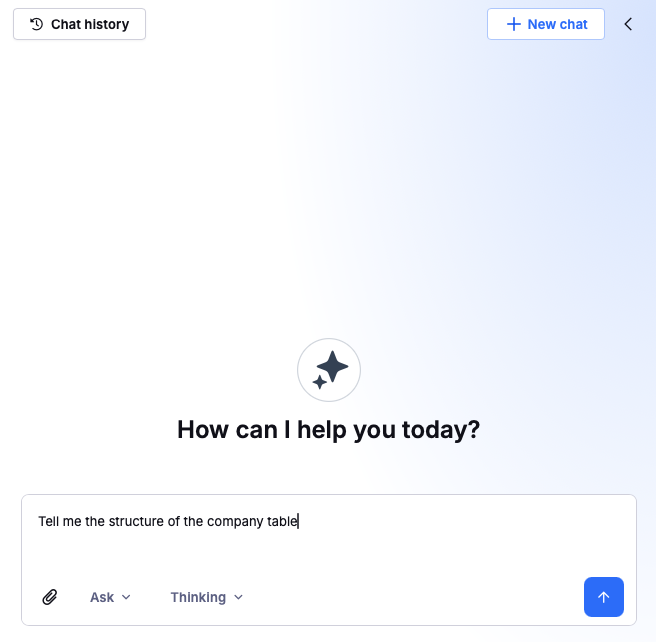
Simply describe what you need or ask a question.
- "Tell me the structure of the company table"
What can you ask?
General help
Ask about how Tabidoo works or how to achieve specific tasks:
- How do I create a new table?
- How do I set up a workflow?
- How do permissions work in Tabidoo?
- What is the best way to structure my application?
Application-related questions
Ask about what you are currently building or configuring:
- How should I design this application?
- What tables should I create for a CRM system?
- How can I organize my application structure better?
- What is the recommended way to handle user roles here?
Application-related questions
Ask about what you are currently building or configuring:
- How should I design this application?
- What tables should I create for a CRM system?
- How can I organize my application structure better?
- What is the recommended way to handle user roles here?
Modify your application
AI Chat can make changes directly in your application.
You can ask it to:
- Create new tables
- Add or modify fields
- Configure table structures
- Create relationships between tables
- Adjust parts of your application based on your request
For example:
Create a Customers table with Name, Email, Phone, and Company fields.
Create records
AI Chat can also create records and insert data directly into your application.
For example:
Add a new customer named John Smith with email john@example.com.
Or:
Create three tasks for the Website Redesign project and set their status to To Do.
Scripting help
Get help with TypeScript and advanced logic:
Example:
Create a script that validates a form before saving and shows an error message if a required field is empty.
Chat Interface Overview
- Chat field: ask anything
- Mode selector: Ask / Build (Build coming soon)
- Agent selection: choose between Thinking and Fast (more agents coming soon, including custom agent creation)
- Chat history: access previous conversations
Context Awareness
AI Chat works with your current application context, including:
- Current application structure
- Tables, fields, and relationships
- Your permissions
- Your current location in the app
This helps the AI provide more relevant answers.
Tips for best results
- Be specific in your request
- Include context if needed
- Ask follow-up questions
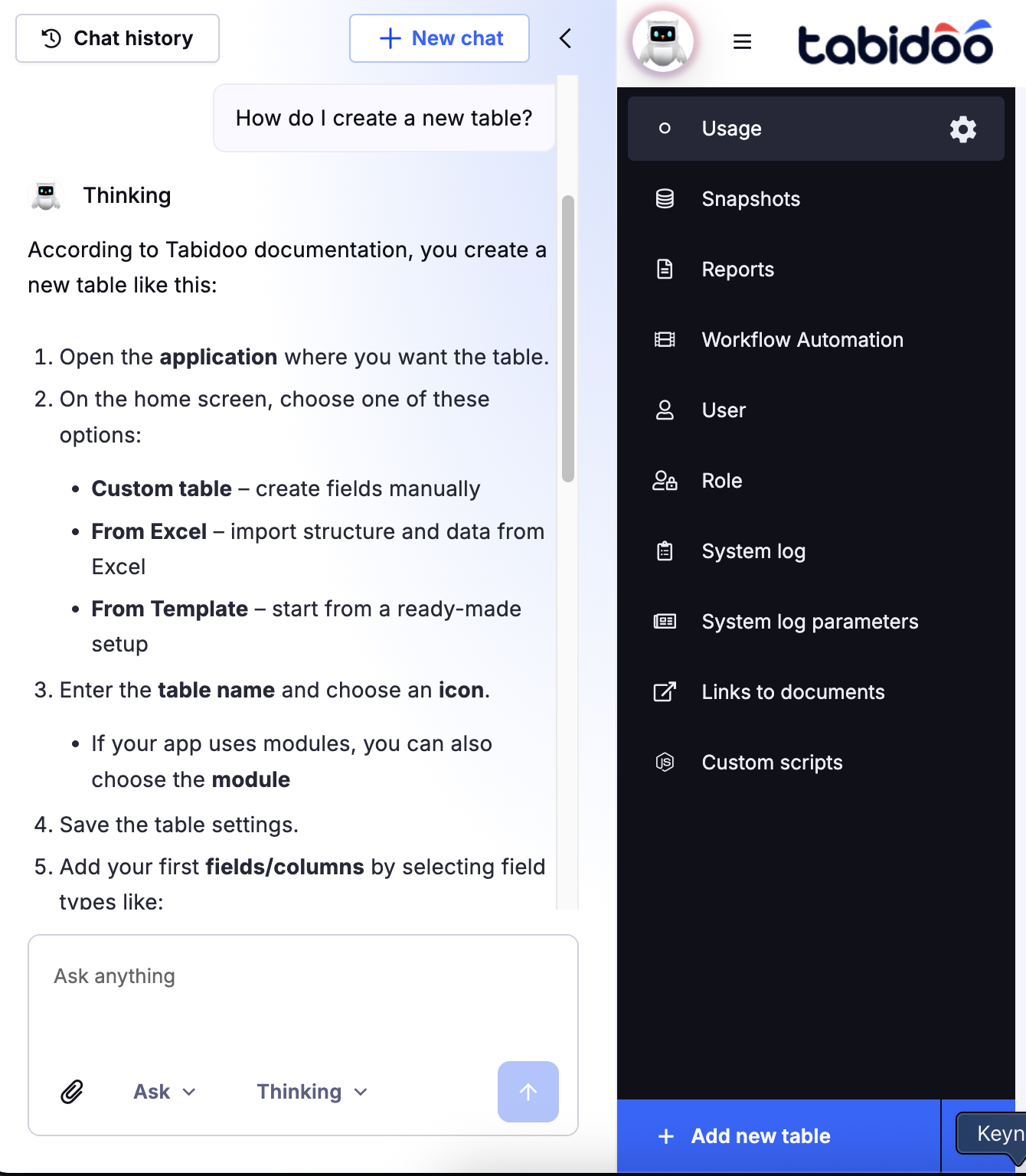
Example
User question:
How do I create a new table?
AI:
According to Tabidoo documentation, you create a new table like this:
- Open the application where you want the table.
- On the home screen, choose one of these options:
- Custom table – create fields manually
- From Excel – import structure and data from Excel
- From Template – start from a ready-made setup ...
AI Models
Learn more about AI models
Coming soon
- Build Mode (create and modify apps via chat)
- Direct execution of AI-generated changes
- Deeper integration with workflows and UI