---
title: "Widget - Free Html (Beta)"
url: "https://help.tabidoo.cloud/en/article/widget-free-html"
language: "en"
last_updated: "2026-05-27T08:58:35.042Z"
---
# Widget - Free Html (Beta)
Create any element on the screen using HTML and JavaScript.
Free Html widget allows you to create any element using HTML and Scripting (JavaScript). It is very similar to [Html input](https://help.tabidoo.cloud/en/article/advanced-fields).
It's still in Beta. **Functionality and behavior may change**.
The widget is offered only to users with the developer level switched on.
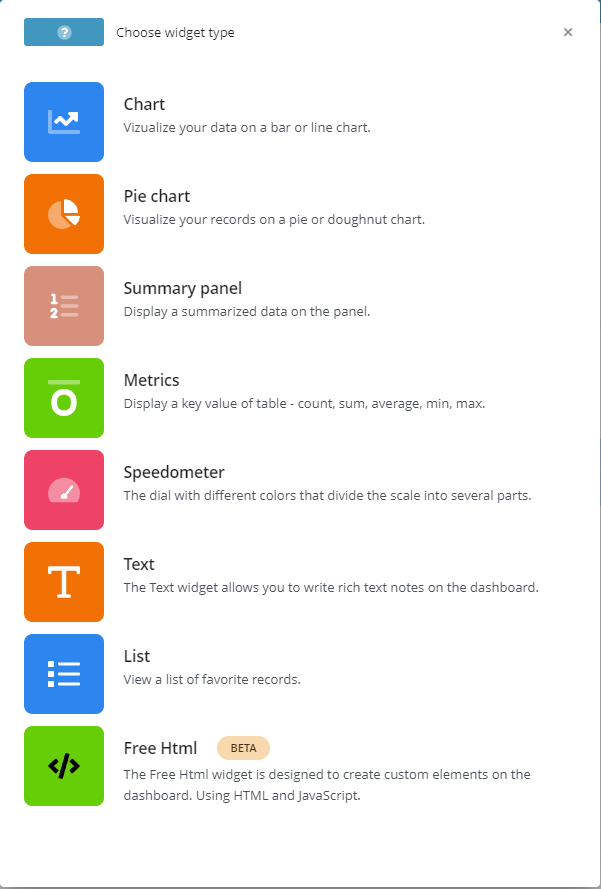
## Widget settings
1) **Label** - enter the name of the widget
2) **HTML** - any valid HTML including iframes. It is recommended to use TBD-RANDOM-ID variable to make sure your elements are uniquely identified.
```html
User list
Loading ...
```
3) **Scripting Editor (JavaScript)** - init script for the widget. Use for loading data etc.
```javascript
let options = {};
let result = await doo.table.getData('User', options);
const elem = document.getElementById('TBD-RANDOM-ID-my-p');
let widgetBody = 'Logins:'
for (let row of result.data) {
widgetBody += ' ' + JSON.stringify(row.fields.login)
}
elem.innerHTML =widgetBody;
```
**Styles** – You can use cascading styles (CSS) to style HTML. Just add the `
...
```
> Under **Widget appearance**, there is an option **Refresh after record changed**. When this is selected, the widget init script runs on every row changed. Selected rows can be found in doo.environment.currentApplication.currentTable.selectedRecords
**Do not forget to save** by clicking on "Done" and afterwards "Save dashboard" in the upper right corner"!