---
title: "JavaScript was terminated after 90 sec. timeout"
url: "https://help.tabidoo.cloud/en/article/javascript-was-terminated-after-90-sec-timeout"
language: "en"
last_updated: "2026-10-23T05:51:07.827Z"
---
# JavaScript was terminated after 90 sec. timeout
Server-side workflows in Tabidoo have a 90-second execution limit.
If a JavaScript runs longer, the workflow is automatically stopped with the following error:
```
The Workflow finished with the result: Javascript was terminated after 90 sec. timeout (Javascript running longer than 90 sec. is not supported).
```
- The limit applies to **workflows that run on the server**. Scripts that run in the browser are not affected.
- The limit applies to **the whole run** – all steps of the workflow together, not each step separately.
- The time includes waiting – for example for an external service or an AI agent to answer.
- What the workflow did before it was stopped is **not undone** – records it already saved stay saved. Keep this in mind before you run it again, so you do not create duplicates or send the same e-mails twice.
- On the **Pro** plan and higher, you can let a workflow run longer with the **Server timeout** setting – see *Long-running workflows* below.
## Why it happens
A workflow usually runs too long when one run does too much work at once:
- **Reading data inside a loop** – for example `getData()` for every record, or a lookup table read again for every record.
- **Saving records one by one** instead of all at once.
- **Loading data the script does not need** – all fields instead of a few, or the whole table instead of a filtered part.
- **A Foreach loop box over many records.** Each record means several requests.
- **Paging through a large table in small pages.** `doo.table.getData` returns only **25 records** unless you set `limit`, so a loop over a big table makes many requests.
- **Calls to slow external services** – a webhook, an API, or an SFTP server that answers slowly.
- **AI calls.** One call of an AI agent takes several seconds.
- **Large reports** generated in one run.
## Find the workflow that takes the longest
- **Run log** – open the workflow and check its run log. The newest run is first.
- **Data usage** – click your avatar → **Data usage** → **Workflow time**. Click the row to see the **top consumers** – the workflows that ran the longest today.
## How to fix it
### Save all records at once
```
// Slow – one request per record
for (const r of rows) {
await doo.table.updateFields('orders', r.id, { state: 'done' });
}
// Fast – one request for all records
await doo.table.updateRecordsBulk('orders',
rows.map(r => ({ id: r.id, fields: { state: 'done' } })));
```
For new records, use `doo.table.createRecordsBulk`.
### Load only what you need
Filter on the server, set `limit`, and load only the fields you work with:
```
const rows = (await doo.table.getData('orders', {
filter: 'state(eq)open',
limit: 500,
loadFields: ['id', 'total']
})).data;
```
If you only need a number, use `doo.table.getCount` or `doo.table.getDataSummary` instead of loading records.
### Read lookup tables once
Read a lookup table once at the start of the run, keep it in a variable, and use it for every record.
### Process large amounts in batches
When one run cannot finish all the work in 90 seconds, split it over several runs. For example, a scheduled workflow processes the first 500 unprocessed records, marks them as processed, and the next run continues with the next 500.
```
const batch = (await doo.table.getData('orders', {
filter: 'processed(eq)false',
limit: 500,
loadFields: ['id', 'total']
})).data;
// ... do the work ...
await doo.table.updateRecordsBulk('orders',
batch.map(r => ({ id: r.id, fields: { processed: true } })));
```
### Split the work into several workflows
A workflow can start another workflow with `doo.workflow.runWorkflow('Workflow name')`. Each workflow runs separately, with its own 90 seconds. Workflows can start each other at most 5 times for one record and 50 times in one chain.
### Keep AI calls few
Plan for one or two AI calls in one run. Never call an AI agent for every record in a loop – send more records in one prompt, or process them in batches.
## Long-running workflows (Pro plan and higher)
On the **Pro** plan and higher, a workflow can run longer than 90 seconds:
1. Open the workflow in the editor.
2. Set **Server timeout** to **Long-running**.
3. Enter the **Maximum duration (seconds)**. The run is stopped when it takes longer.
With **Normal**, the 90-second limit applies.
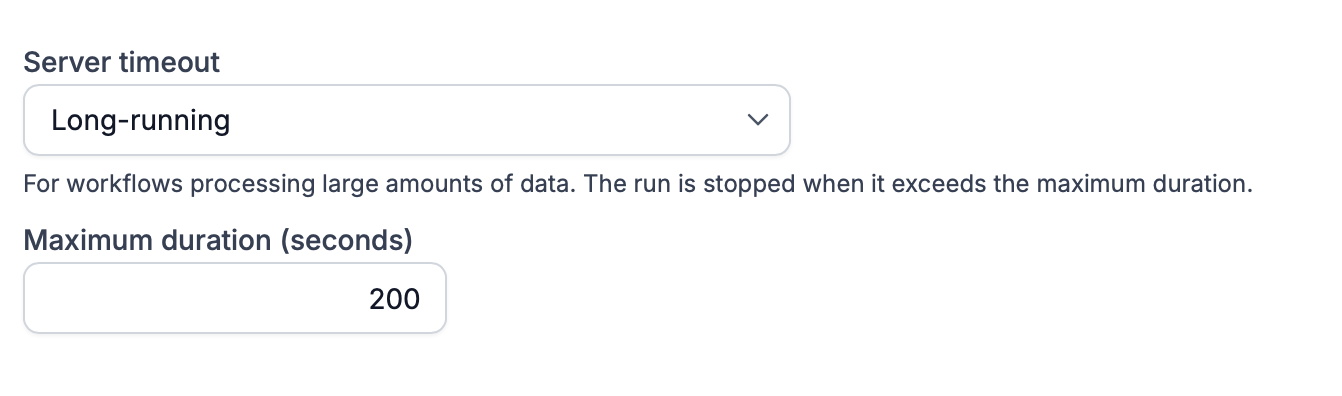
In theory, one run can use the whole daily budget of **30 minutes** (1,800 seconds). The time of long-running workflows is counted in **Long-running workflow time** in Data usage. Like Workflow time, it is stopped at **3× the daily limit**.
Even with a long-running workflow, the tips above are worth following – a faster workflow uses less of your daily budget.
## Related limits
| Limit | Value |
| --- | --- |
| One run of a server workflow | 90 seconds; on Pro and higher with
**Server timeout → Long-running**
: the maximum duration you set |
| Workflow time per day | 10 min (Free), 30 min (Basic, Standard, Pro), unlimited (Enterprise) |
| Long-running workflow time per day | 30 min (Pro), unlimited (Enterprise) |
| Workflows started by other workflows | 5 for one record, 50 in one chain |
All limits are in [Limits in Tabidoo](https://help.tabidoo.cloud/en/article/limits-in-tabidoo).
## See also
- [Behavior of Workflow](https://help.tabidoo.cloud/en/article/behavior-of-workflow)
- [Limits in Tabidoo](https://help.tabidoo.cloud/en/article/limits-in-tabidoo)
- [Error Messages in Tabidoo](https://help.tabidoo.cloud/en/article/error-messages-in-tabidoo)
- [Data Transfer Limit](https://help.tabidoo.cloud/en/article/data-transfer-limit)